
EZCast Pro Dongle II Quick Start Guide
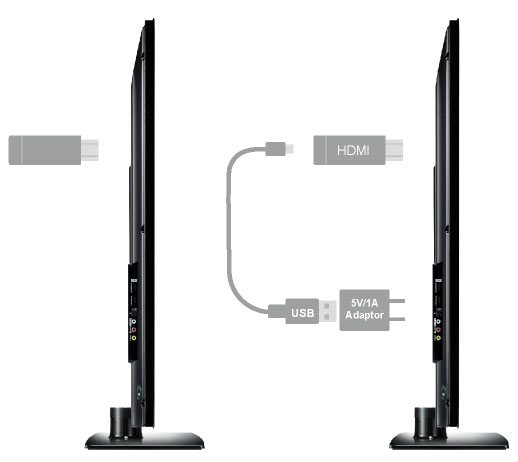
安装说明
1. 请将EZCast Pro Dongle II插入电视的HDMI输入端口,并连接USB到电视的USB接口与电源
2. 请将电视的输入源切换至此HDMI输入口
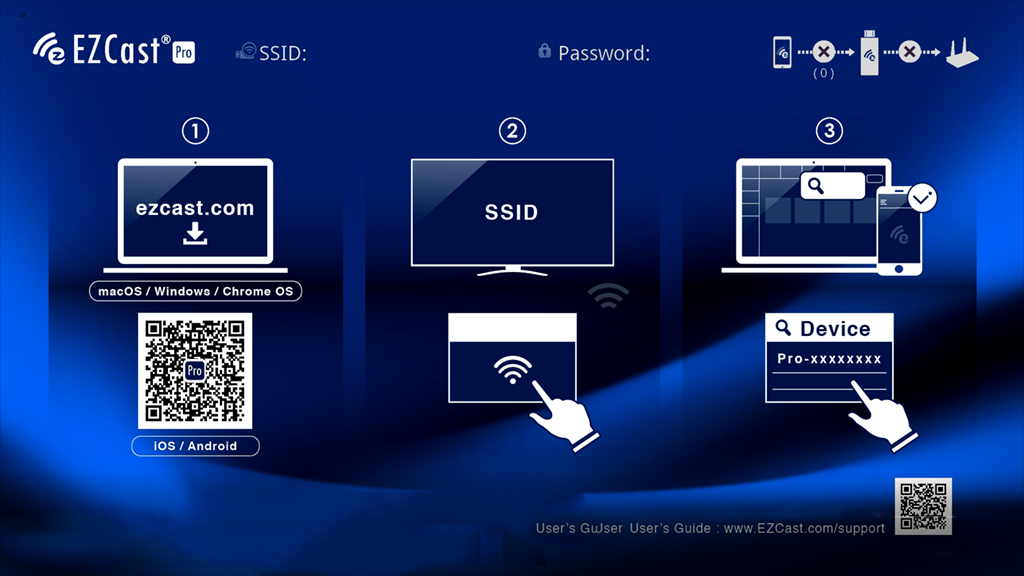
根据开机画面的指示,进行以下操作
1. Windows或macOS用户,请从ezcast.com下载EZCast Pro App。 Android 用户可以Google Play或ezcast.com下载EZCast Pro App。而iOS用户可以从App Store下载
2. 在装置内的Wi-Fi列表找到相符的SSID,并且输入密码
3. 开启您的EZCast Pro App与EZCast Pro Dongle II连结。成功连结后,就能开始享受投影!
Installation guide
1. Please plug EZCast Pro Dongle II into TV’s HDMI socket and connect USB power adapter to it.
2. Switch TV’s input source to HDMI input, and you will see the main menu on TV screen after booting up.
You will see connection instruction on screen. Please follow the below steps to set up your EZCast Pro Dongle II.
1. For Windows or macOS user, please download EZCast Pro App at ezcast.com. For Android user, you may find EZCast Pro App in Google Play; For iOS user, you may find EZCast Pro App in App Store.
2. Find the matching SSID in your device’s Wi-Fi list and type in the password.
3. Open your EZCast Pro App and connect to the EZCast Pro Dongle II. Once connected, you may start casting.

Watch setup videos

Download 1.0 User Manual

Download Quick Start Guide

For more demo clips,
please subscribe Youtube channel